
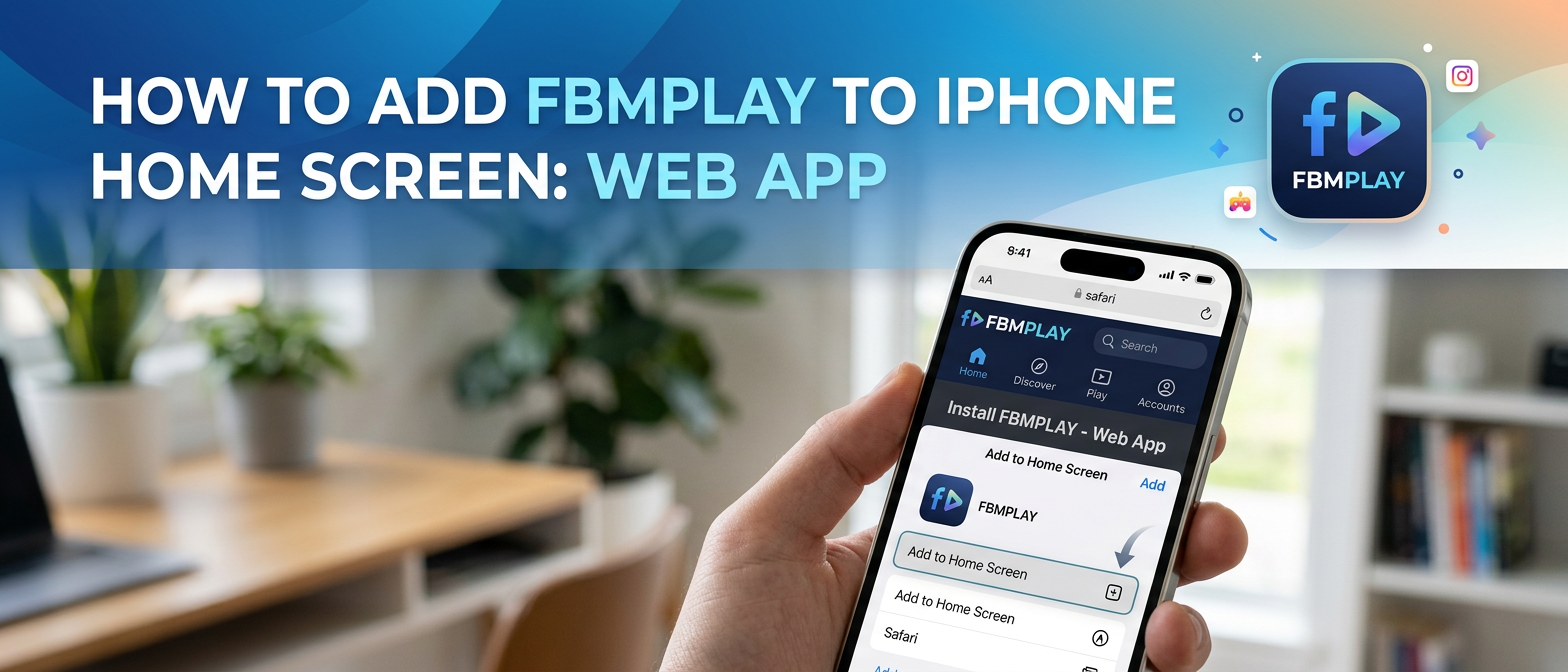
How to Add FBMPLAY to iPhone Home Screen: Web APP Setup Guide
Learn how to add FBMPLAY to iPhone home screen: open fbmplay.com in Safari, tap Share, then Add to Home Screen. This 21+ PAGCOR Web APP offers new Philippine players a spin reward up to ₱188.
Why FBMPLAY Uses a Web APP on iPhone
Many new players search the Apple App Store expecting to find a downloadable application, only to realize there is no official listing. This is not an error or an oversight by FBM Gaming. The Apple App Store enforces strict regulatory policies that do not permit real money gambling applications to be distributed through their platform in the Philippines. Because FBMPLAY is a fully regulated, PAGCOR-licensed platform operating legally within the country, it complies with these digital distribution constraints by utilizing modern web technology.
Instead of a traditional download, PAGCOR-licensed operators provide iPhone users with a Progressive Web App (PWA), commonly referred to as a Web APP. This is the standard, regulated practice for mobile gaming in the region. A Web APP bridges the gap between a standard website and a standalone application. Once you complete the installation process, the Web APP looks, feels, and behaves exactly like an app downloaded from the App Store. Your login credentials, gameplay mechanics, deposits, and withdrawals all function seamlessly within this dedicated environment, without taking up significant storage space on your device.
Step 1 — Open fbmplay.com in Safari
The installation process begins with your web browser, but it is critical to use the correct one. You must launch Safari on your iPhone. Safari is the default web browser developed by Apple and is heavily integrated into the iOS operating system.
If you typically use Google Chrome, Brave, Mozilla Firefox, or Microsoft Edge, you will need to switch to Safari for this specific setup. Apple's iOS system restrictions prevent third-party browsers from adding standalone web applications to the iPhone home screen. This is an Apple system limitation, not a choice made by FBMPLAY. Once you have opened Safari, type fbmplay.com into the address bar and press go. Wait a few moments for the homepage to fully load, ensuring all graphics and prompts have appeared on your screen before proceeding to the next step.
Step 2 — Tap Share, then Add to Home Screen
Once the official website has completely loaded in your Safari browser, look at the very bottom of your screen. You will see a navigation bar containing several icons. Locate the Share icon, which is represented by a small square with an upward-pointing arrow emerging from the top.
Tap this Share icon to open the iOS share menu. This menu contains various options for interacting with the current webpage, such as sending it to a contact or copying the link. Scroll down through the list of actions until you find the option labeled "Add to Home Screen". It is typically located alongside a square icon with a plus sign inside it. Tap "Add to Home Screen" to initiate the creation of your Web APP shortcut.
Step 3 — Confirm by tapping Add
After tapping the option, Safari will display a confirmation screen. This screen allows you to review the details of the shortcut before it is finalized. The shortcut name will automatically appear as "FBMplay". It is highly recommended that you leave this name exactly as it is, so you can easily identify the platform later.
In the top right corner of this confirmation screen, you will see the word "Add". Tap "Add" to complete the process. The Safari browser will automatically close, and you will be taken directly to your iPhone home screen. You will now see the official FBMPLAY Web APP icon, featuring the distinct red FBM logo. You can now simply tap this icon to open the Web APP and begin your gaming session.
Claiming Your Free Spin Reward
Installing the Web APP is not just about convenience; it also unlocks an exclusive welcome bonus for new players. After successfully installing the Web APP on your home screen and completing your account registration, players are granted a free spin on the Big Wheel reward system.
This promotional feature offers a variety of randomized cash prizes that are credited directly to your gaming wallet. The possible spin outcomes include ₱18, ₱28, ₱38, ₱58, ₱88, or ₱188. While the maximum prize is a generous amount, it is important to remember that the wheel awards random values up to ₱188. This initial boost provides a great opportunity to explore the platform's extensive library of games without immediately dipping into your own deposited funds.
What the FBMPLAY Web APP Does After Installation
Once you launch the platform from your newly created home screen icon, you will immediately notice the difference compared to standard mobile browsing. The FBMPLAY Web APP opens in full-screen mode. This means the Safari address bar, the bottom navigation buttons, and other browser interface elements are completely hidden, providing an immersive, app-like experience.
Furthermore, the Web APP is designed to save your login session securely. This allows for faster access during future visits, eliminating the need to repeatedly enter your username and password every time you want to play. Because the system recognizes that you have already installed the PWA, you will also receive fewer disruptive prompts asking you to "add to home screen." Inside the Web APP, every feature functions identically to the main website—all slot games, live dealer tables, payment gateways for deposits, and withdrawal processing systems are exactly the same.
Why Safari is Required for Installation
As mentioned earlier, using Safari to install the Web APP is a mandatory requirement, but it is worth understanding why. Apple tightly controls the iOS ecosystem. The underlying technology that powers Progressive Web Apps on iPhones (WebKit) restricts the "Add to Home Screen" functionality exclusively to Safari. Third-party browsers simply do not have the system-level permissions required to create standalone icons on your device.
However, this restriction only applies to the installation phase. If you strongly prefer using Google Chrome, Brave, or Microsoft Edge for your daily internet browsing, you can absolutely still visit fbmplay.com directly within those browsers to log in and play. The only drawback is that those browsers cannot save FBMPLAY as a dedicated, full-screen Web APP on your home screen.
Security Warning: Avoid Fake iOS Apps
Because there is no official listing in the Apple App Store, malicious actors sometimes attempt to exploit players looking for a download. It is crucial to understand that FBMPLAY does NOT have a traditional iOS application. Any website, forum, or social media post advertising an "FBMPLAY iOS app" or offering an "FBMPLAY .ipa file" for download outside of the official Safari method is unauthorized and potentially dangerous.
Downloading unverified .ipa files or using third-party iOS app stores can compromise your device's security, exposing your personal data and financial information to phishing attacks or malware. Never attempt to sideload applications or jailbreak your iPhone to access the platform. Only install the Web APP via the official Safari "Add to Home Screen" flow described in this guide. This ensures you are connecting directly to the secure, encrypted, and PAGCOR-regulated servers.
Troubleshooting Common Installation Issues
While the installation process is generally smooth, some users may encounter minor technical hiccups. For example, if you are browsing Safari in "Private Mode," the "Add to Home Screen" button may not function correctly, or the Web APP may fail to save your login credentials. Additionally, running a severely outdated version of iOS can cause compatibility issues with modern PWA technology.
If you follow the steps above and the icon does not appear, or if the Web APP opens as a standard browser tab rather than in full-screen mode, we have a dedicated guide to help you resolve these specific problems. Please refer to our comprehensive Troubleshooting FBMPLAY on iPhone article for step-by-step solutions to ensure your Web APP functions perfectly. (Note: If you are using a non-Apple device, please refer to our FBMPLAY Android app download guide instead).
Frequently Asked Questions (FAQ)
How do I add FBMPLAY to my iPhone home screen?
To add the platform to your device, open fbmplay.com using the Safari browser. Tap the Share icon located at the bottom of the screen, scroll down the menu, and select "Add to Home Screen." Finally, tap "Add" in the top right corner to place the icon on your device.
Does FBMPLAY have an iOS app?
No, there is no traditional iOS application available in the Apple App Store due to regional restrictions on real money gaming apps. Instead, iPhone users access the platform by installing the official Web APP (PWA) directly from the website via Safari.
What is the FBMPLAY Web APP?
The Web APP is a Progressive Web App (PWA) that functions like a standalone application. When added to your home screen, it opens in full-screen mode without browser bars, saves your login sessions, and provides an optimized, app-like experience for playing games and managing your funds.
Can I use Chrome or Brave to add FBMPLAY to my iPhone home screen?
No. Due to Apple's iOS system limitations, only the Safari browser has the necessary permissions to add a Web APP to your home screen. While you can play games using Chrome or Brave by visiting the website, you cannot install the home screen shortcut through them.
What reward do I get for installing the FBMPLAY Web APP?
After successfully installing the Web APP and setting up your account, you unlock a free spin on the Big Wheel. This promotional wheel offers randomized cash rewards up to ₱188, which are credited to your account balance.
What should I do if the Add to Home Screen option is missing?
If you cannot find the "Add to Home Screen" option, ensure you are using Safari and not a third-party browser. Also, check that you are not using Safari's Private Browsing mode, as this can sometimes restrict certain browser functionalities. If problems persist, check your iOS version for updates.
Responsible Gambling and Eligibility
The FBMPLAY Web APP provides a seamless and highly accessible gaming experience right from your iPhone home screen. However, it is essential to engage with the platform responsibly. FBMPLAY is operated by FBM Gaming and is strictly regulated by PAGCOR. The platform is available exclusively to verified Filipino players who are aged 21 and above. Always manage your bankroll wisely, set strict time limits for your gaming sessions, and never gamble with money you cannot afford to lose. If you feel that your gaming habits are becoming problematic, please seek assistance from professional responsible gambling organizations in the Philippines.